Run multiple Codex sessions
and find the one you need at a glance.
Codex in the terminal or in VS Code works well while you have one task. But the tasks add up. When they run across different projects, you can only tell the chats apart by their messages, because in the list they all look alike.
Buzzpot is a Mac app that puts every Codex session on a canvas, one shared board, as a card next to its project. Each card has a name and a status. So you find the session you need by looking, not by rereading conversations.
Claude · Codex · Grok · macOS
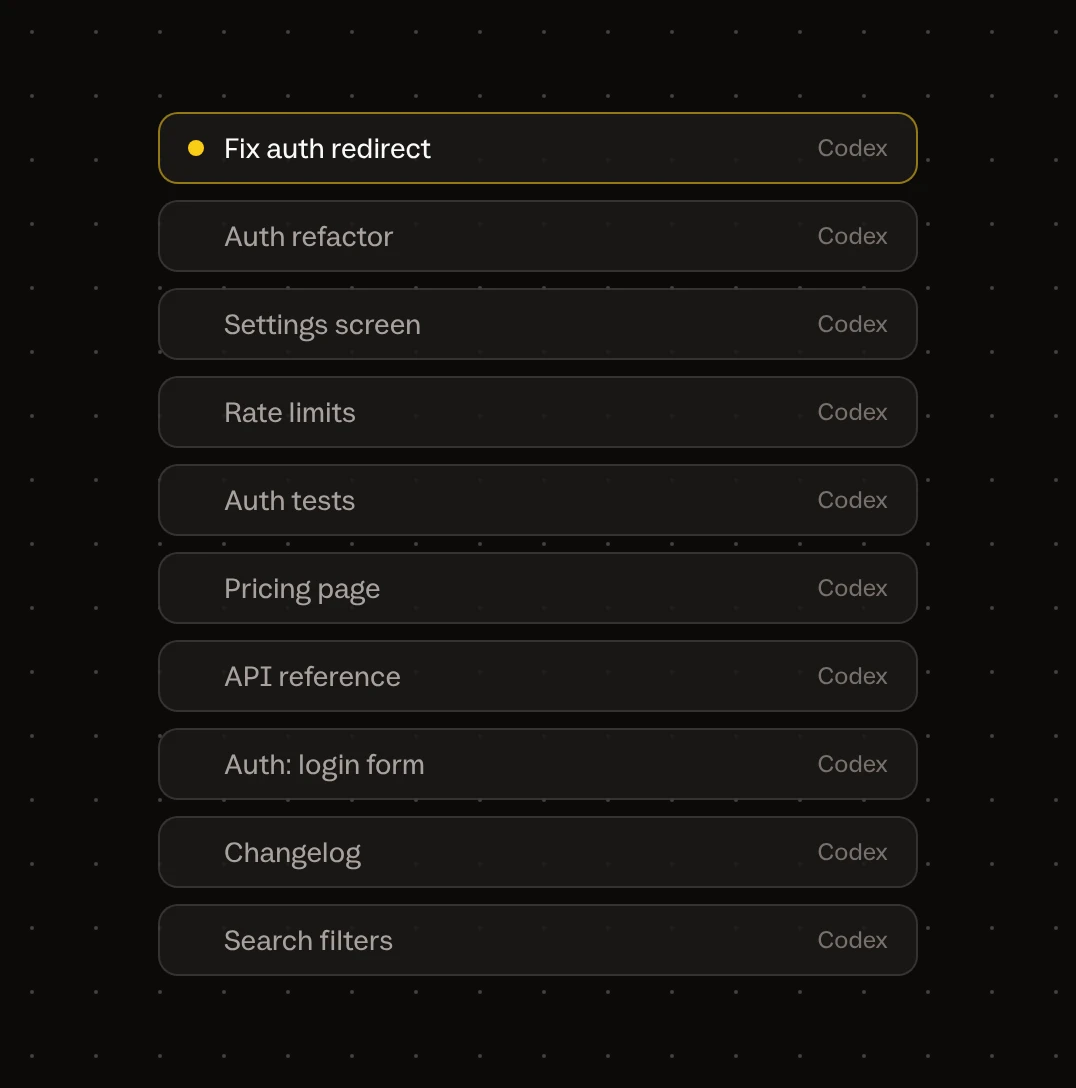
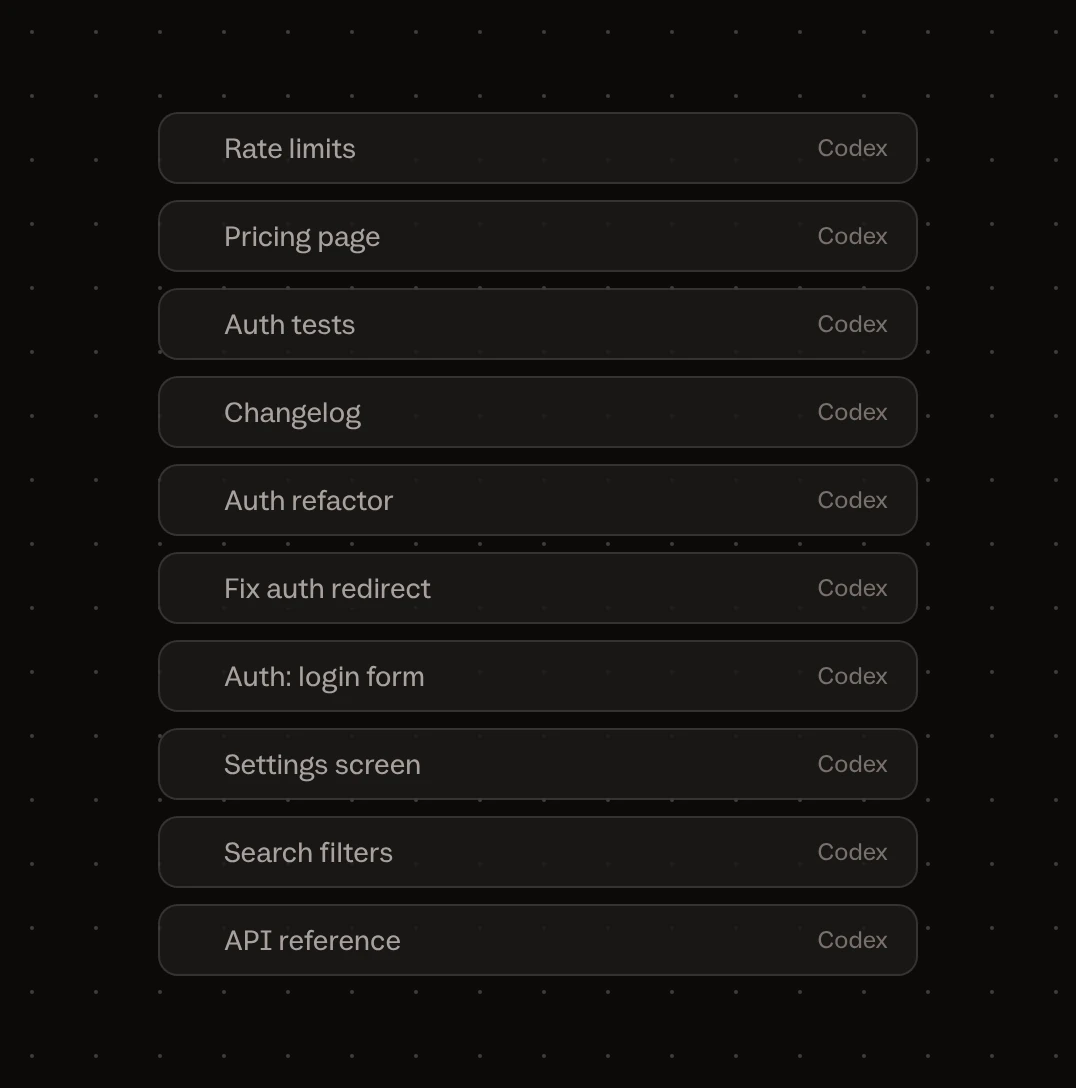
With ten Codex chats open, you look for the right one like a thread in Slack.
In the morning you give Codex a task. Then another one, in a different project. By lunch you have ten chats, their names look alike, and the names no longer tell them apart.
It’s like hunting for the right thread among dozens of Slack chats. With one difference: in each of these threads, an agent is at work.
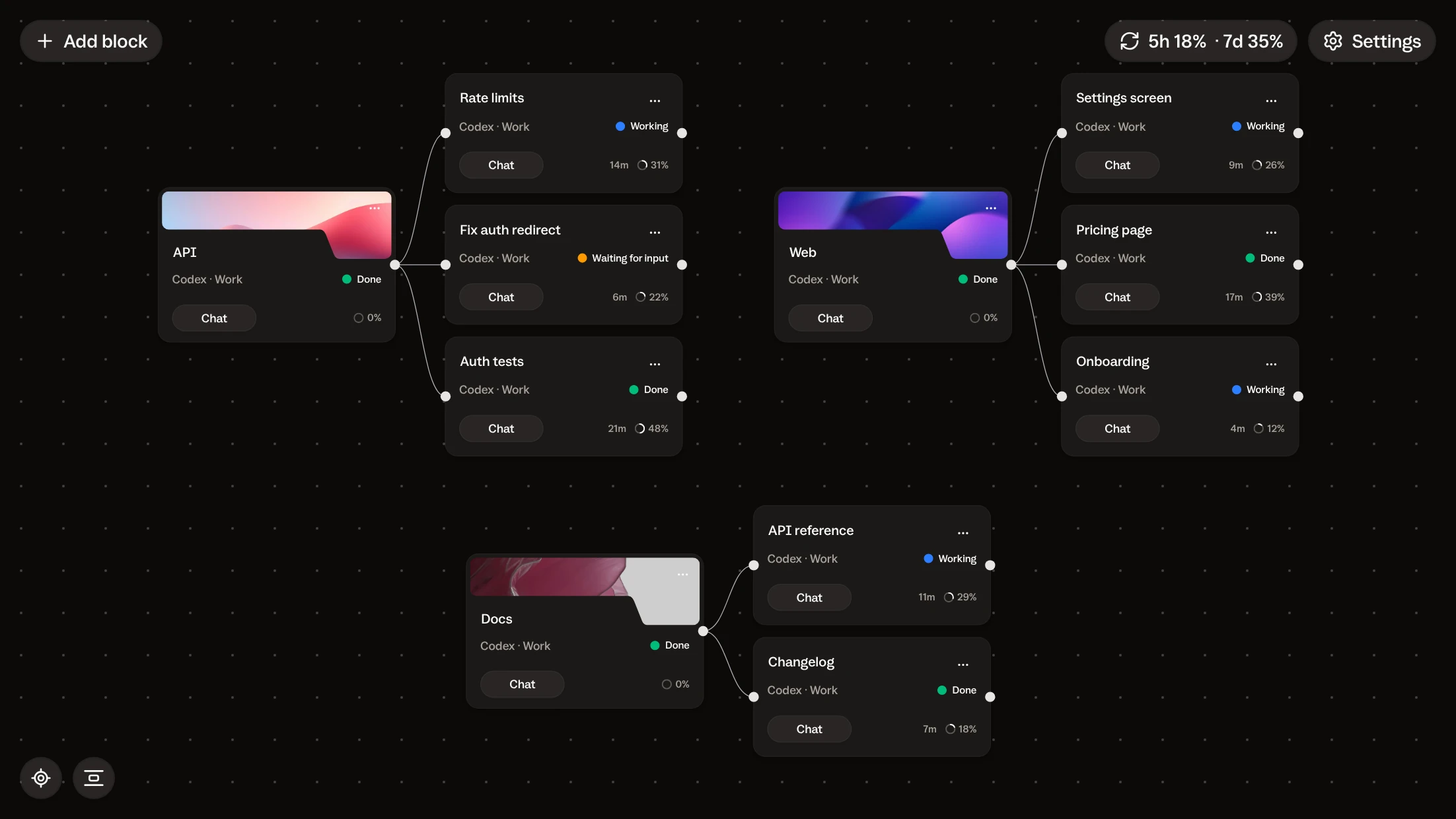
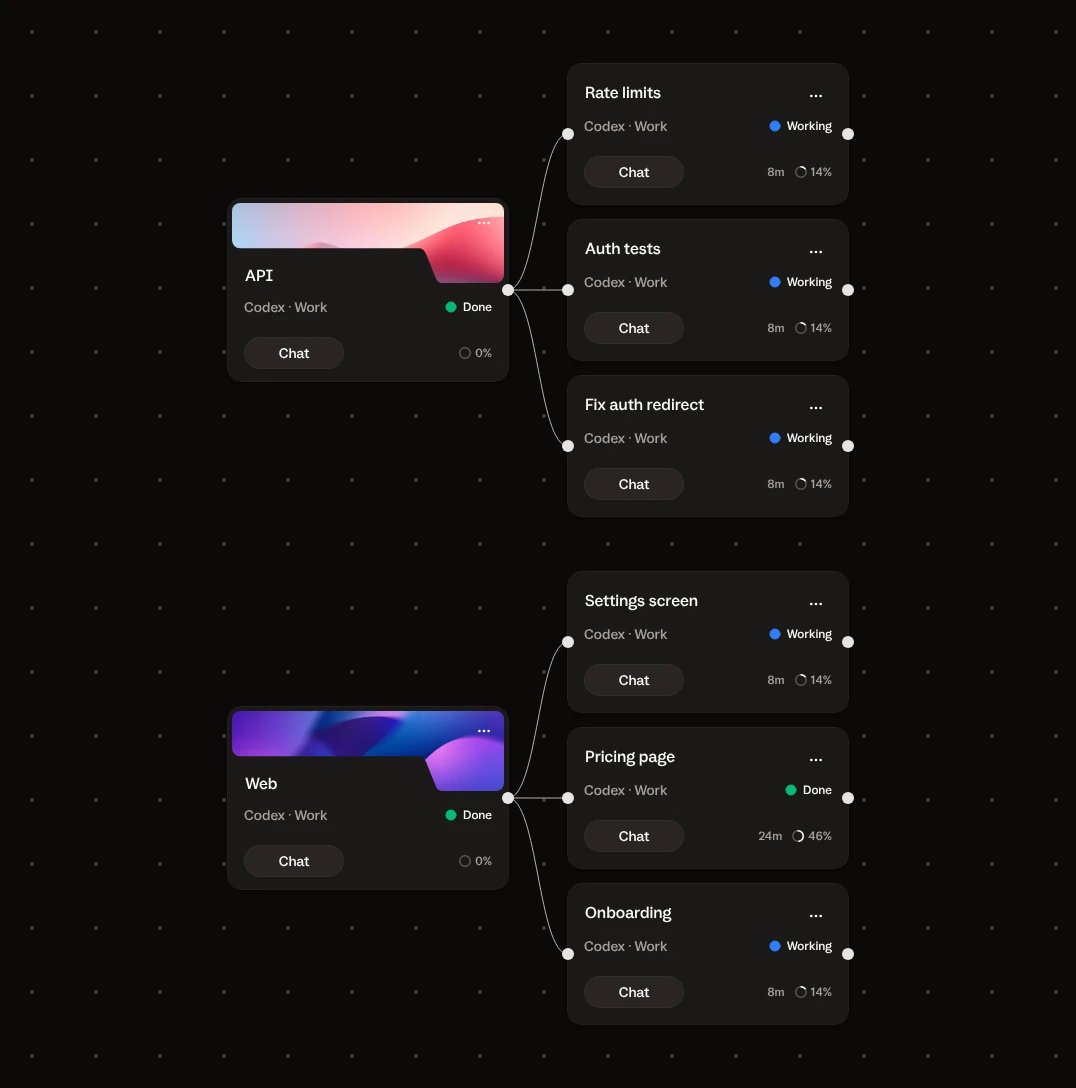
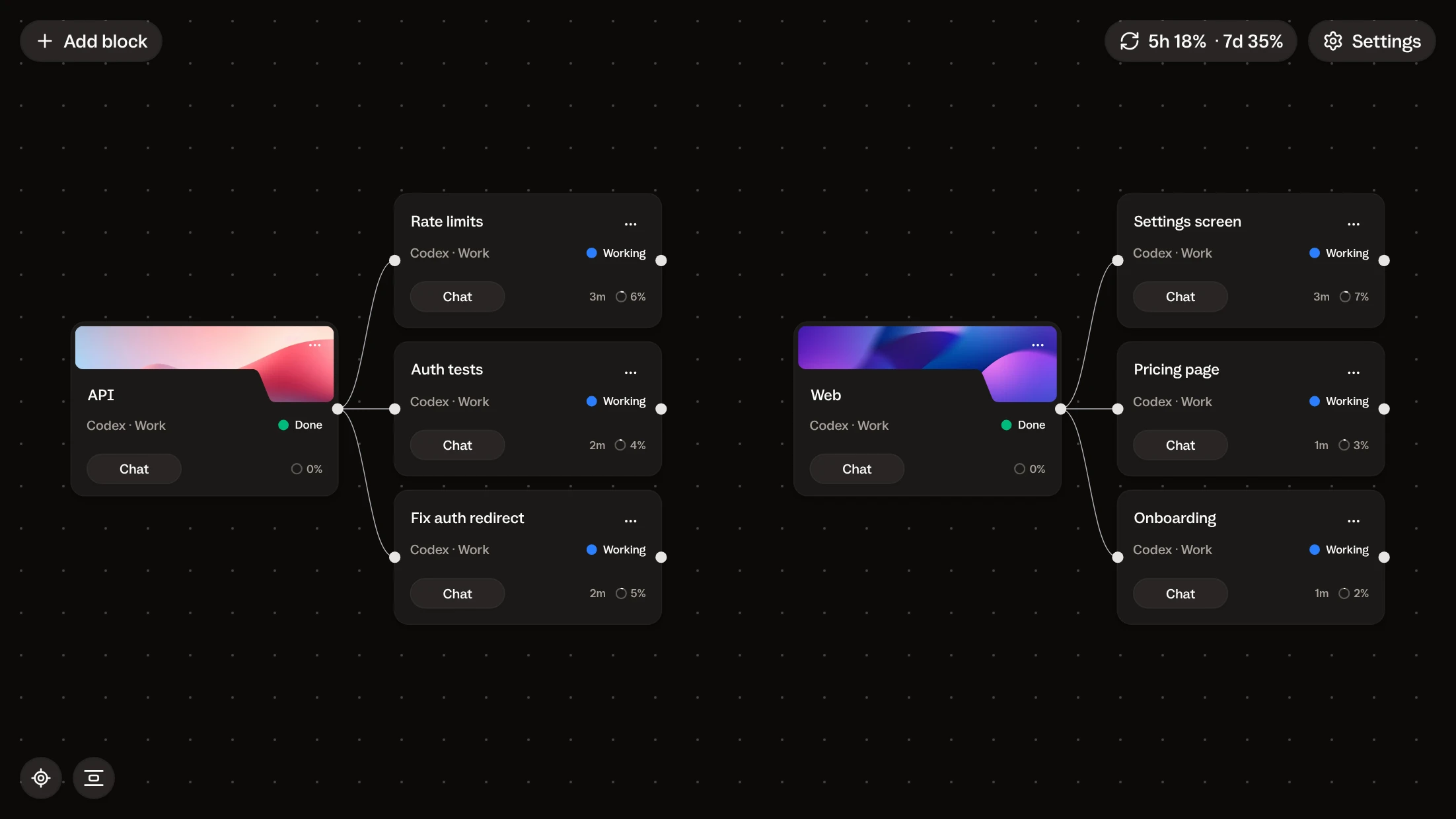
In Buzzpot, every Codex session is a card next to its project.
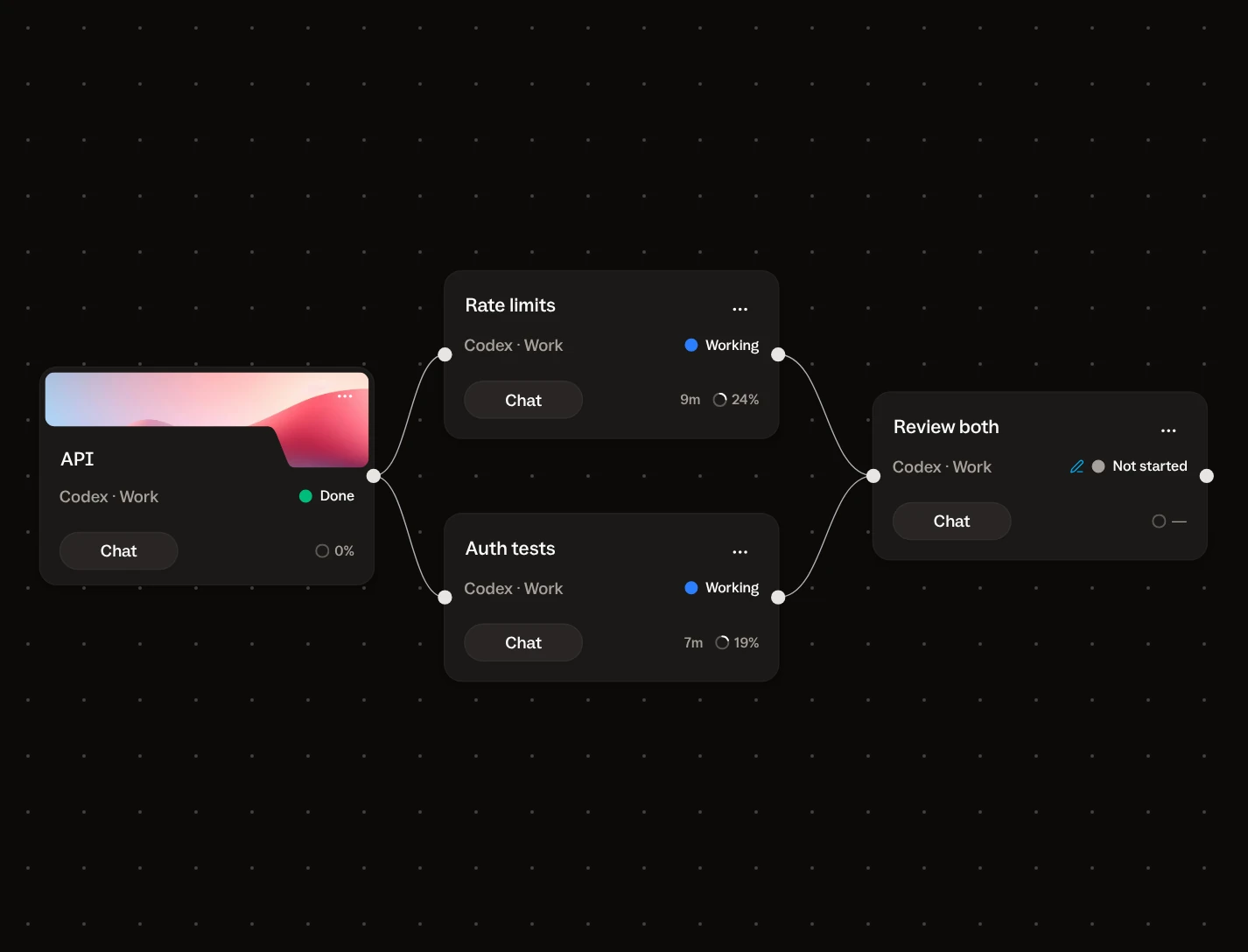
A project card is a folder on your disk. Next to it sit that project’s tasks, each on its own card with its own Codex session. Each project has its own area of the canvas. To switch projects, move the canvas.
Buzzpot saves the canvas after every change, so tomorrow, even after you restart your Mac, the cards will be where you left them.
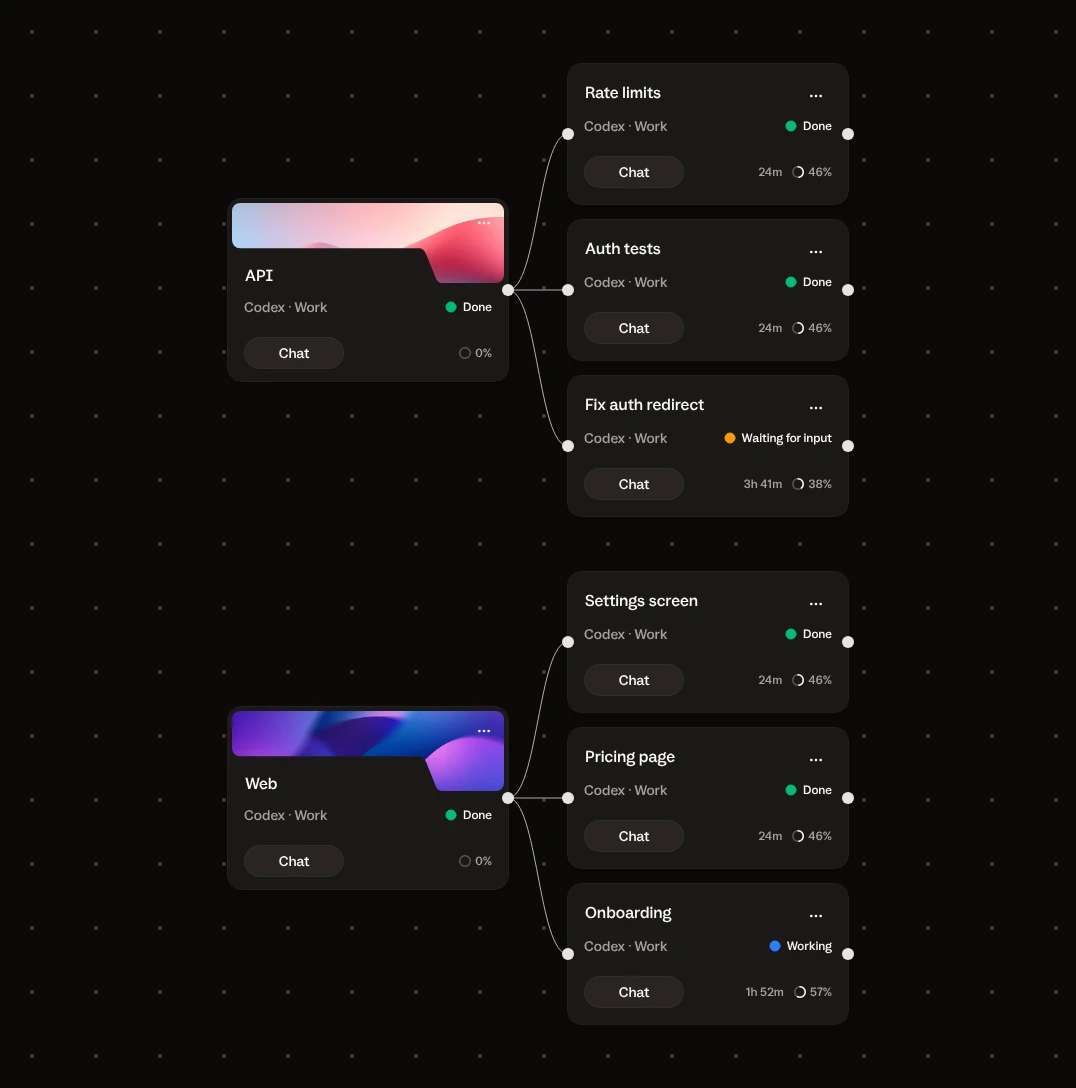
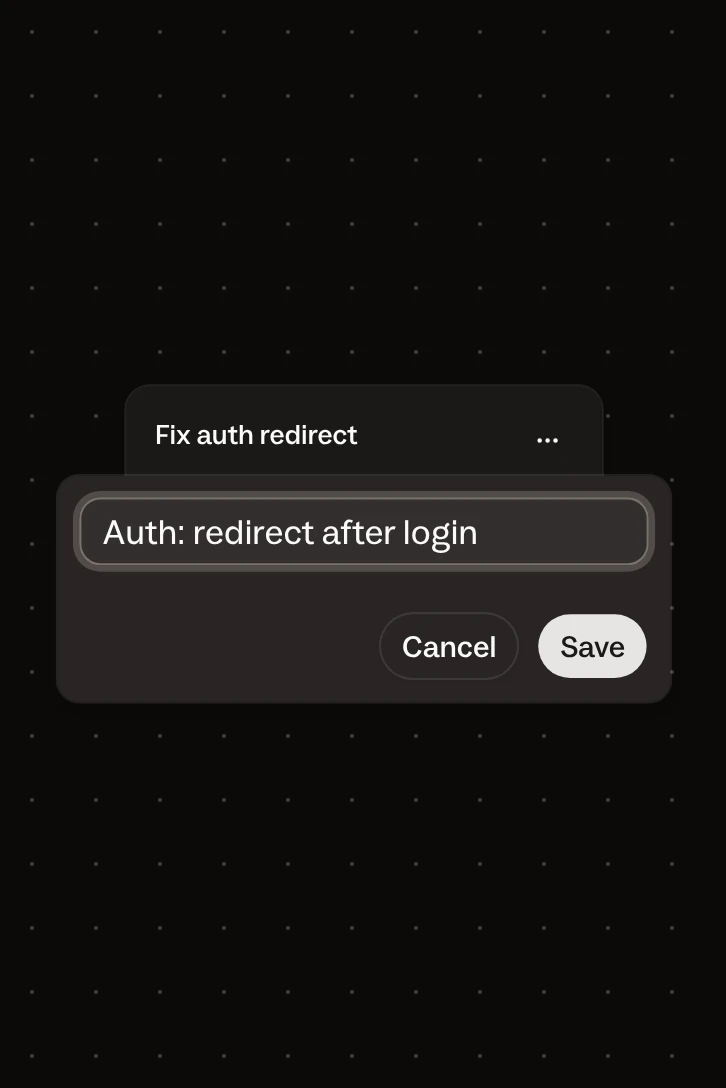
Every Codex session in Buzzpot gets a name that tells you what it’s about.
A new card takes its name from the first line of your message. When Codex replies for the first time, it comes up with a title for the conversation, and the card takes it, unless you’ve already named the card yourself. Don’t like the title? Rename the card.
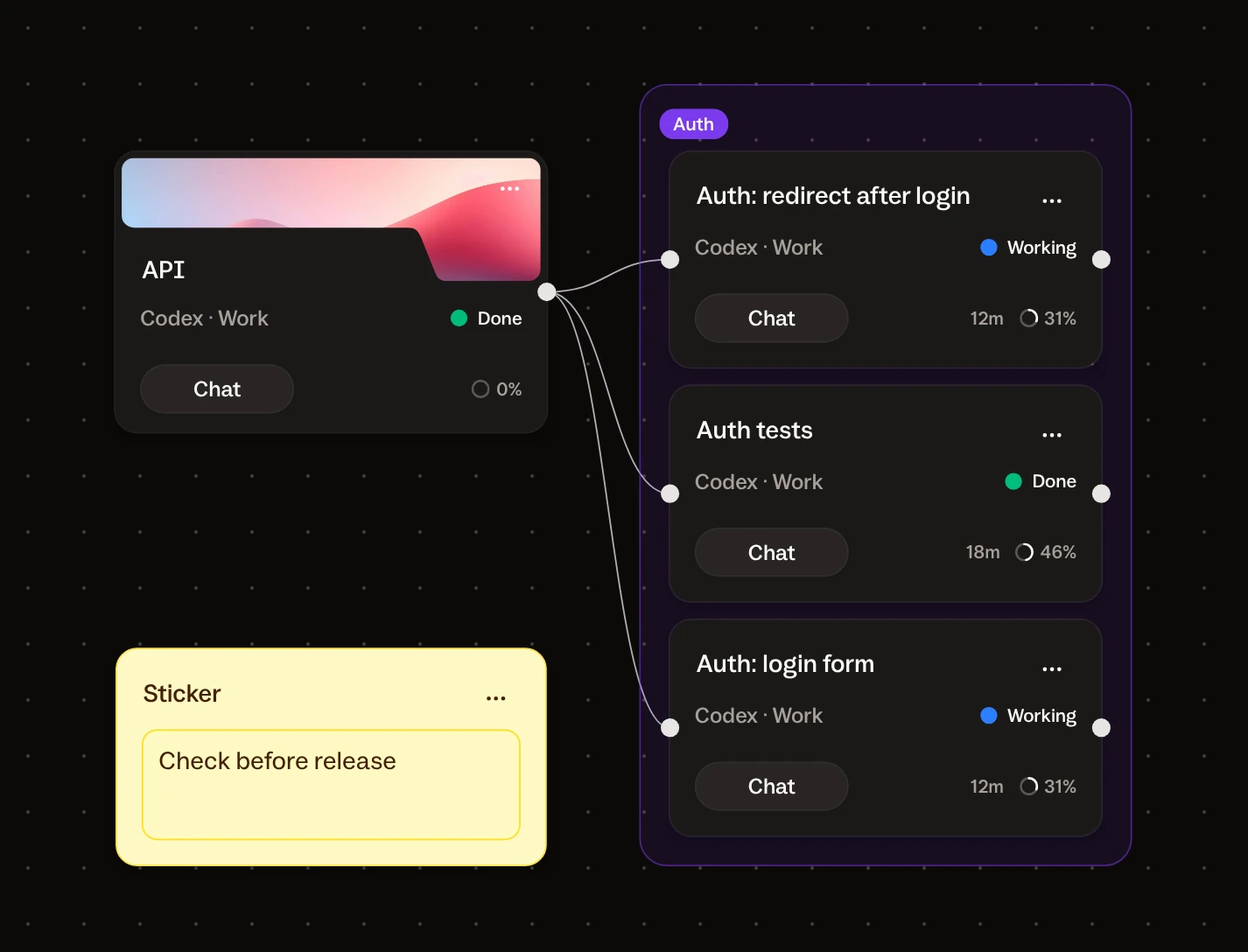
Cards on one topic can be grouped under a name and a color. You can also stick a note to the group. That way these tasks stay together and don’t get mixed up with the rest.
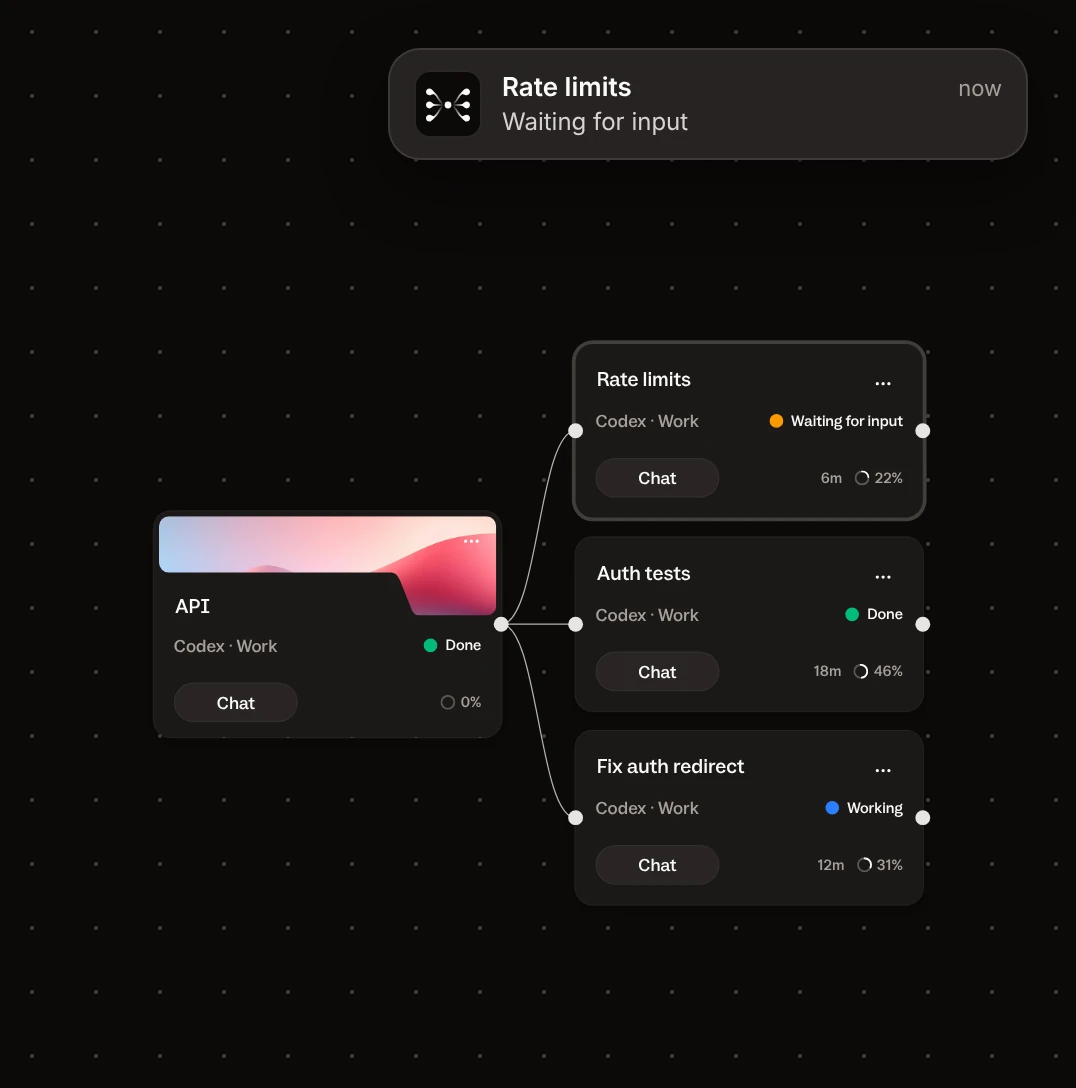
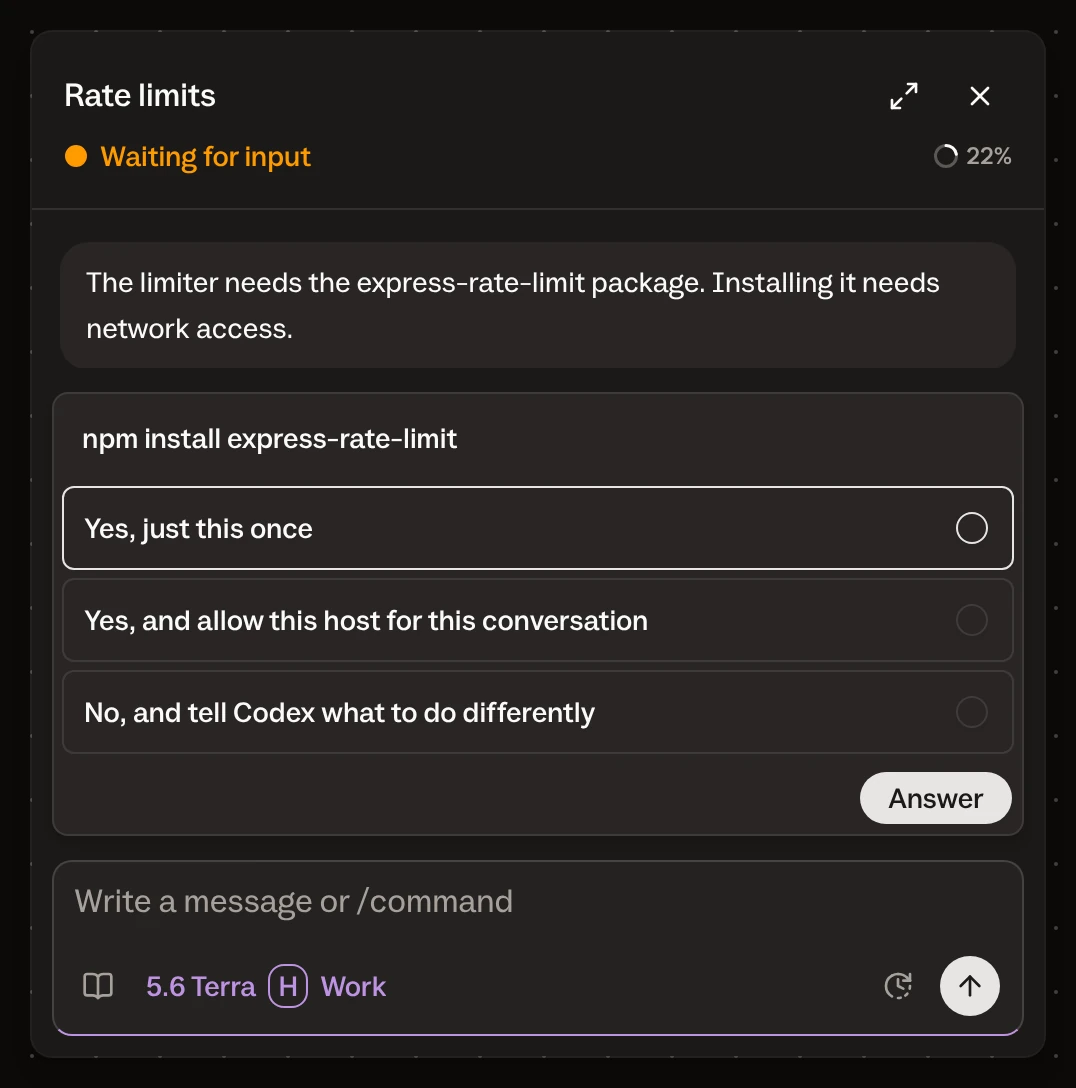
A Codex session that’s waiting for your answer stays in Waiting for input until you reply.
Every card has a status: Working, Waiting for input or Done. The agent changes the status itself when it starts working, asks a question or finishes. A card that’s waiting for an answer stays in Waiting for input until you reply.
When Codex asks for permission, your Mac shows a notification with the card’s name. With Remote control, the same notification reaches your phone, and you can answer right from there.
A card turns Done only when Codex itself reports that the work is finished, so an agent that just went quiet stays in Working.
Several Codex sessions in one project don’t get in each other’s way.
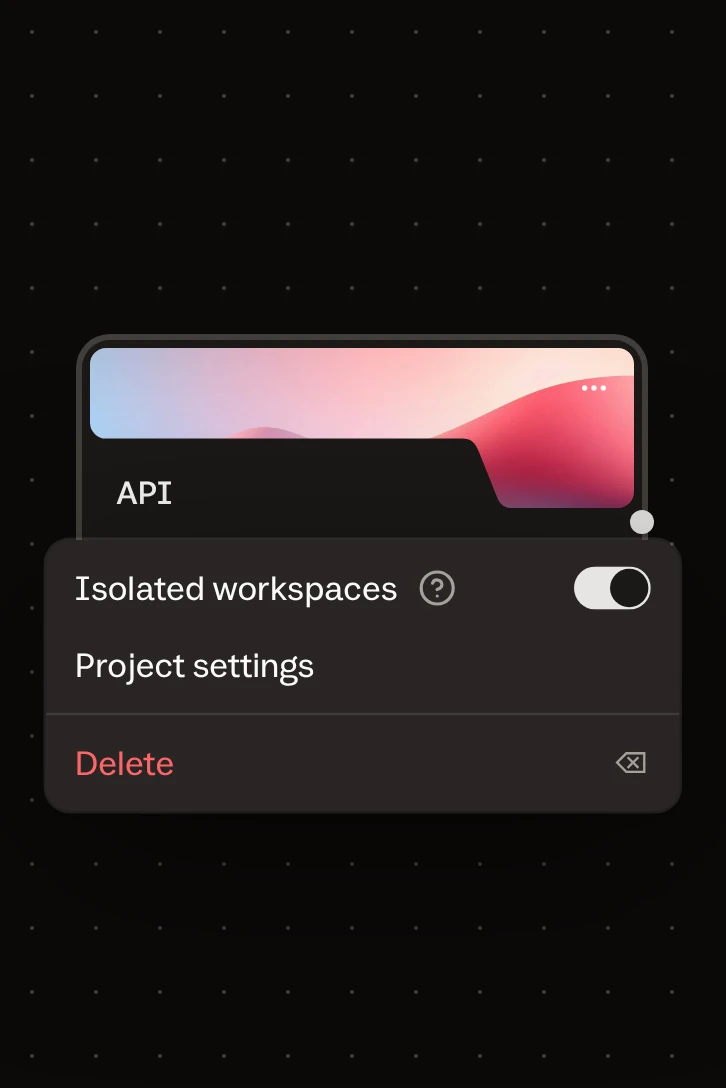
Two Codex sessions in one folder can end up editing the same files. To run Codex agents in parallel without that, turn on Isolated workspaces for the project. Then each card works in its own copy of the project, and when Codex reports the work is done, Buzzpot brings its changes back into the project.
Link the tasks that should run one after another. The next card starts when the previous one turns Done.
Buzzpot runs your own Codex CLI, with your settings and your plan.
Buzzpot has no model of its own. It runs the Codex CLI already installed on your Mac, under your account, so your AGENTS.md, settings and MCP servers work the same way they do in the terminal.
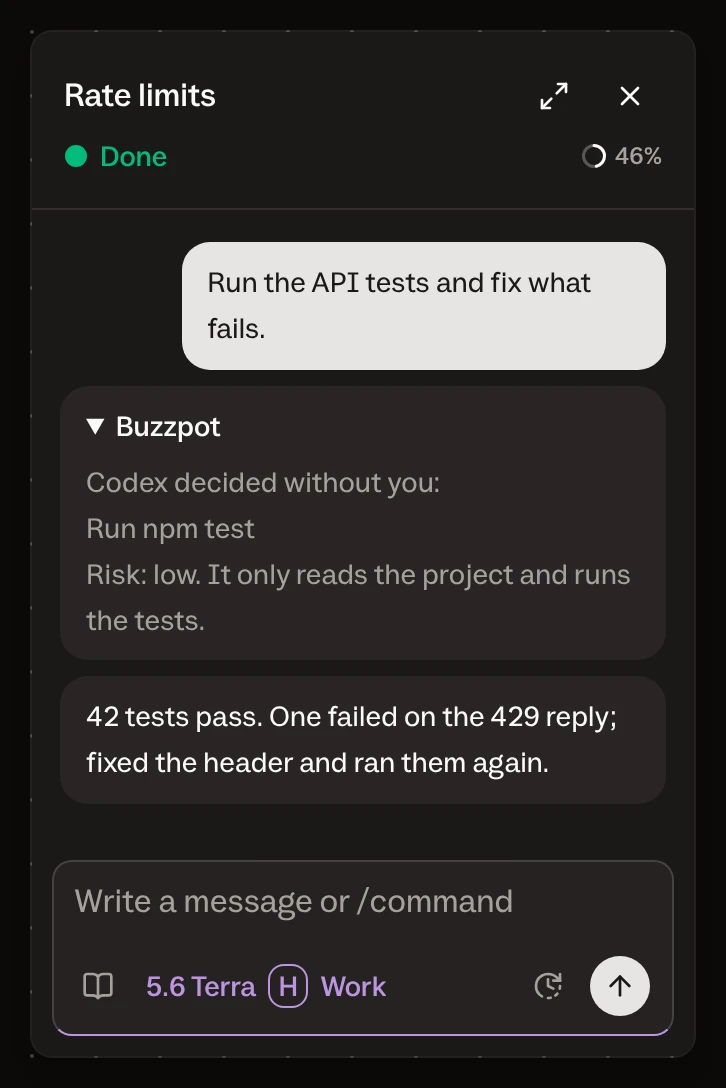
A Codex card has two pickers: Plan or Work, and, separately, the access level. When Codex approves an action without you, a gray line stays in the chat. In it, Codex says what it approved and why.
The terminal and the VS Code extension stay with you, because that’s where you read and edit code. Buzzpot shows all your Codex sessions at once.
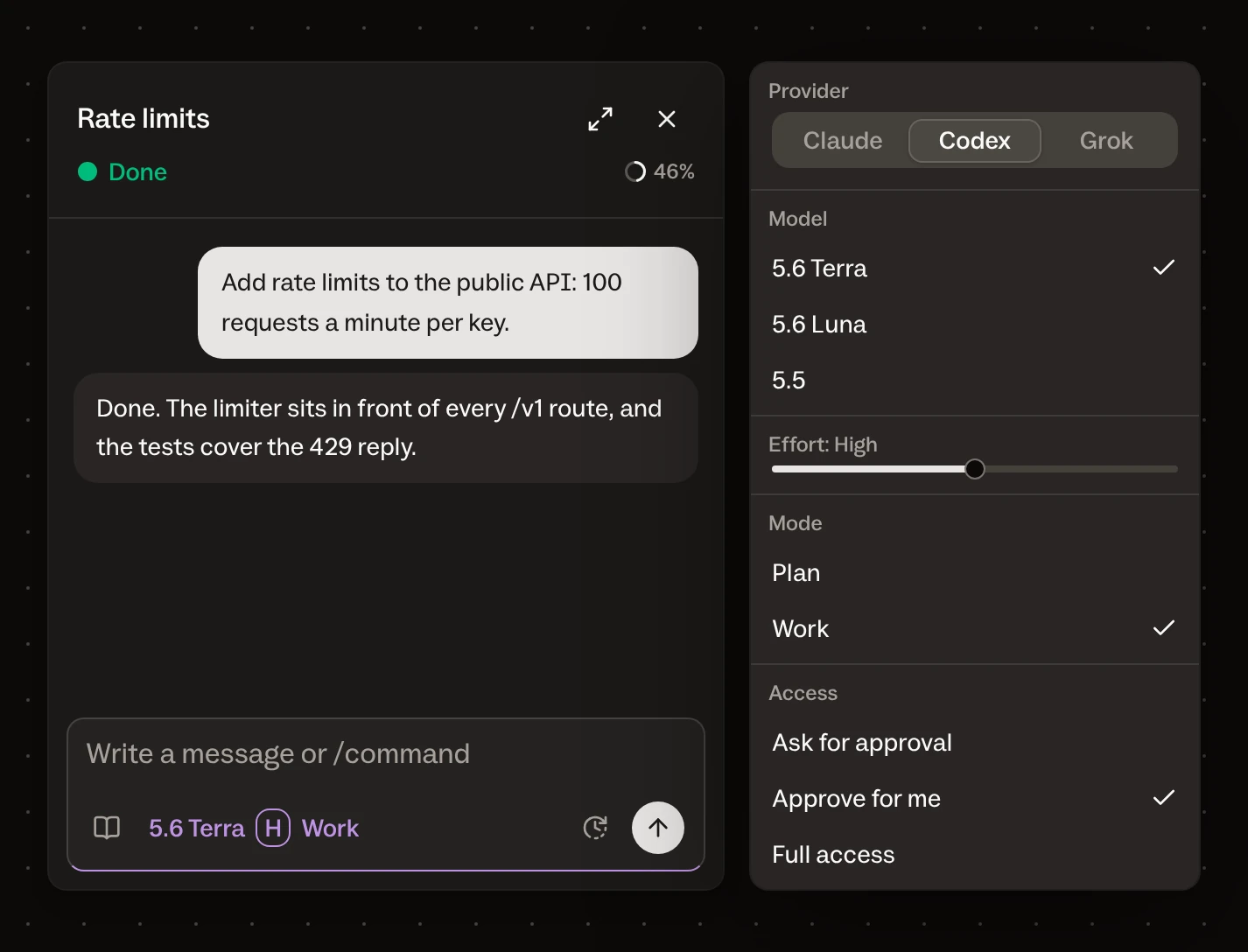
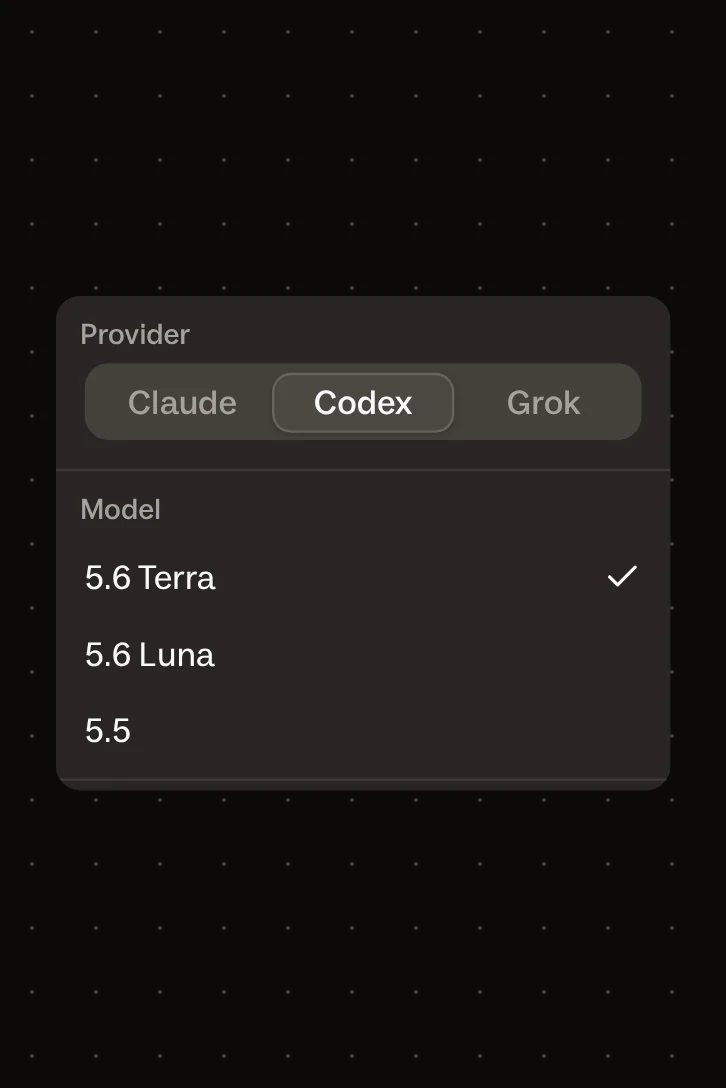
Codex, Claude and Grok work in one window, so you don’t relearn your tools at every switch.
When you switch from Codex to Claude and back, the windows, commands and habits change along with the agent. And every switch means getting used to things again.
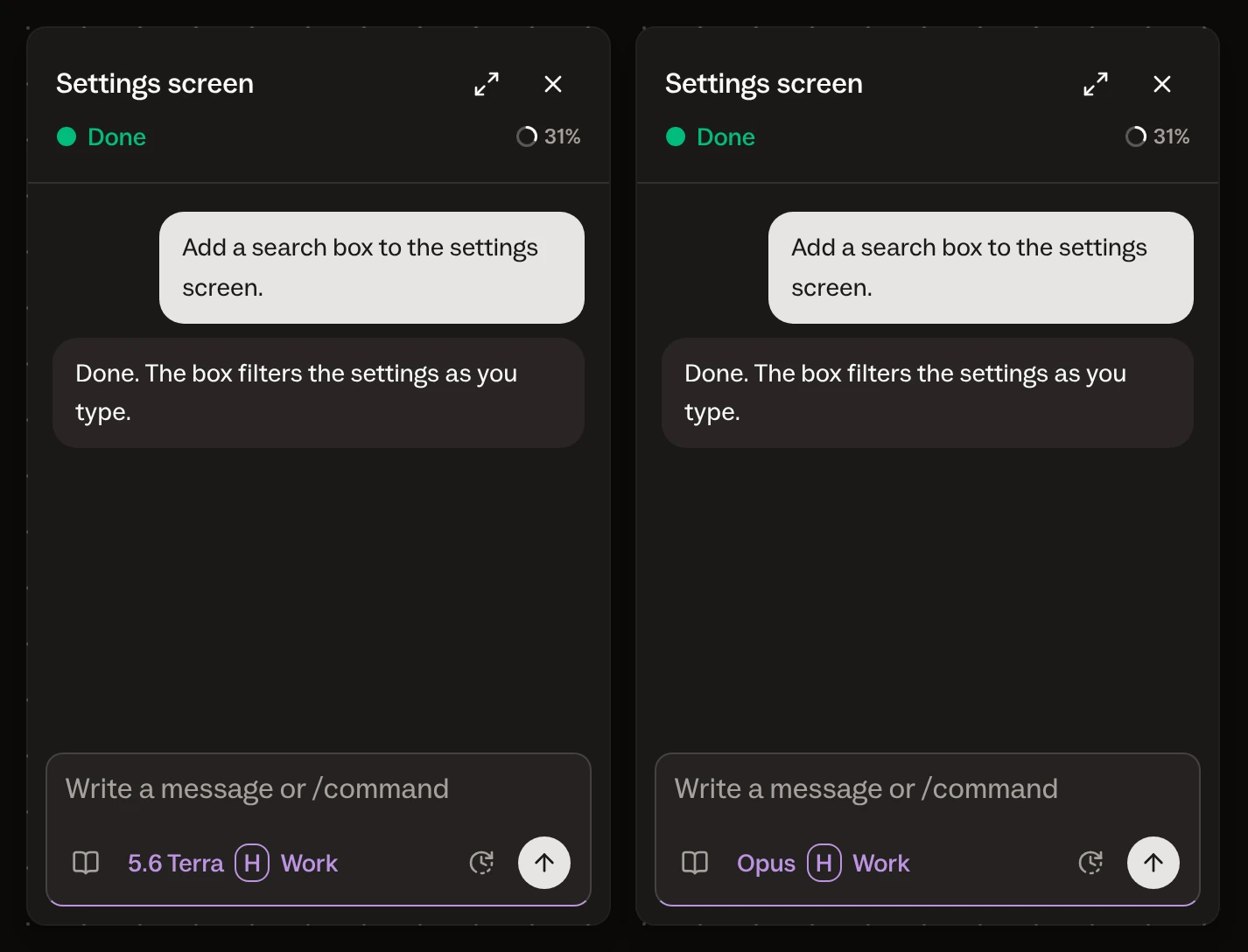
In Buzzpot, the agent is one field on the card. The canvas, statuses and chat stay the same with any of the three agents. So you put Codex where it’s needed, without moving to another app.
Bring your Codex and sort your chats by project.
You need a Mac, a Codex CLI you’re already signed in to, and the projects you’re working on now.
- Add a project card for each repository and point it at the folder.
- Give each current task its own card and pick Codex on it.
- Write the task on each card and send it.
- Optional: group the cards on one topic.
After that, all your Codex sessions are in their places. You don’t need a new OpenAI account or an API key, because Buzzpot works with the Codex you’re already signed in to. Buzzpot is free during the beta, and your code stays on your Mac.
Claude · Codex · Grok · macOS
Is Buzzpot a Codex CLI GUI?
Yes. Each card is a chat with your Codex CLI. Buzzpot has no terminal window, so you read command output in the terminal itself.
Does it replace the Codex app or the VS Code extension?
No, they work side by side. Buzzpot helps once you start losing chats in the list.
Do I need a separate OpenAI account or an API key?
No. Buzzpot runs Codex under the account you’re already signed in to on your Mac.
Do AGENTS.md and MCP servers work?
Yes. The session runs in the project folder and reads the same settings as in the terminal.
How many Codex sessions can I run at once?
Buzzpot doesn’t limit the number. Only your plan does. When you hit the limit, the card shows Limits and keeps the work.
Do the sessions run in the cloud?
No, they run on your Mac. If you turn the Mac off, the cards stop.
Why doesn’t a Codex card show subagents?
Codex calls in helpers only when you ask it to directly. So you split a big task into separate cards. More in the post “I Ran Multiple Codex Sessions the Way I Run Claude Code”.